Bypassing the Chat Restrictions in Our MineMania Minecraft Server
In June 2026 Chat Restrictions were implemented in Minecraft by Microsoft – for everyone, yes even people who have verified their age and set permissions to be able to chat with people online.
Here is how to bypass these restrictions so our members can still chat in game – if you CAN type commands in still you can use any of these methods.
If you CANNOT type commands in -you will have to download a third party Minecraft Launcher and add the No Chat Restrictions Mod.
We have one third party way and two ways we have implemented ourselves thanks to our fantastic Admin who has coded these solutions.
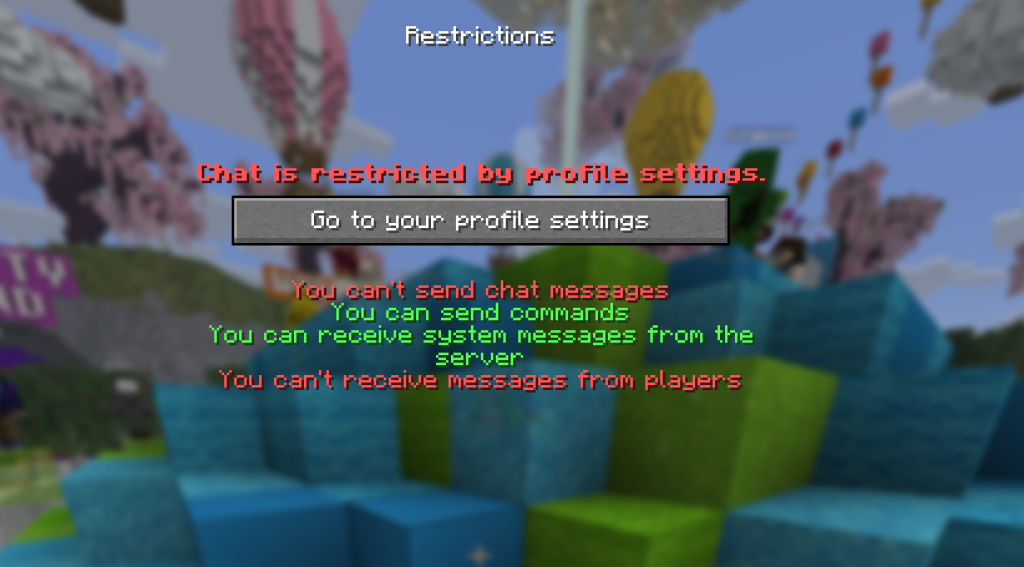
If you are able to type commands in still:
Using The /c Command to Chat:
Type /c in the chat window, then press space and then type your message as normal. You have to type /c in front of every message to enable the chat to work:


DISCORD CHAT – if you are still able to type commands.
We have a secure Discord channel on our DigiTribe Discord server. Verified members of our MineMania Minecraft Server can use the /link command in-game, and then enter the verification code, to link their Discord account to our Discord Server Chat Channel.
ONLY Staff, Volunteers, and the children and young people who are members can access this chat channel. Parent accounts are NOT allowed to connect to the server in-game chat.
This chat channel is subject to the same Code of Conduct as our MineMania server, and anyone found spamming, using offensive language, name calling, or bullying will be removed from the server channel immediately and parents contacted.
Third Party Minecraft Launcher Solution
We are using the Prism Launcher for this guide. Other Launchers are also available.
How To Download Prism Launcher for Minecraft
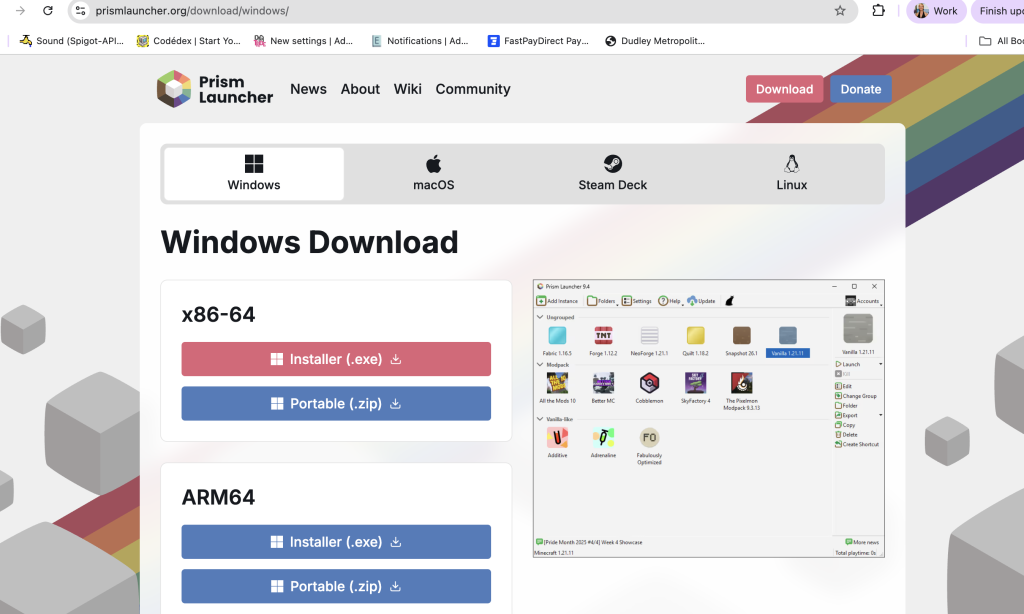
Go to the website https://prismlauncher.org/
Download the Windows or Mac version as needed. Most people will need the installer exe file to download and install on the computer you are using for Minecraft.
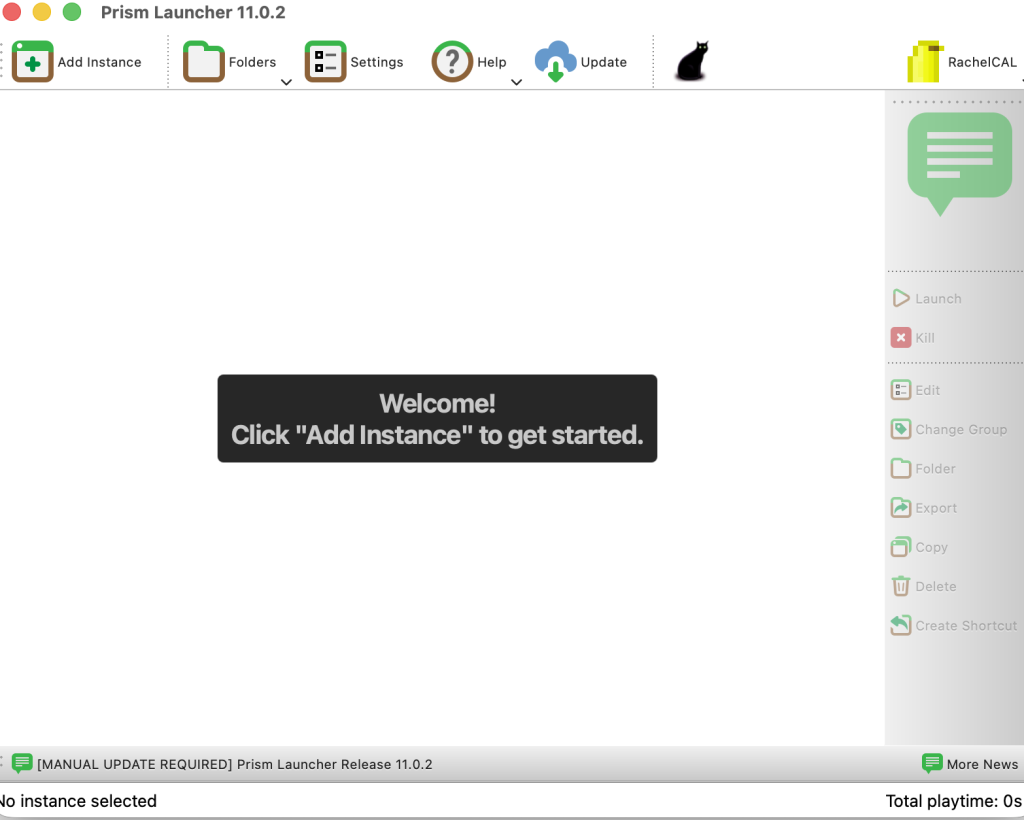
You will see this window. Click Add Instance in the top left of the screen. Choose the version of Minecraft that MineMania is currently using and then click OK.
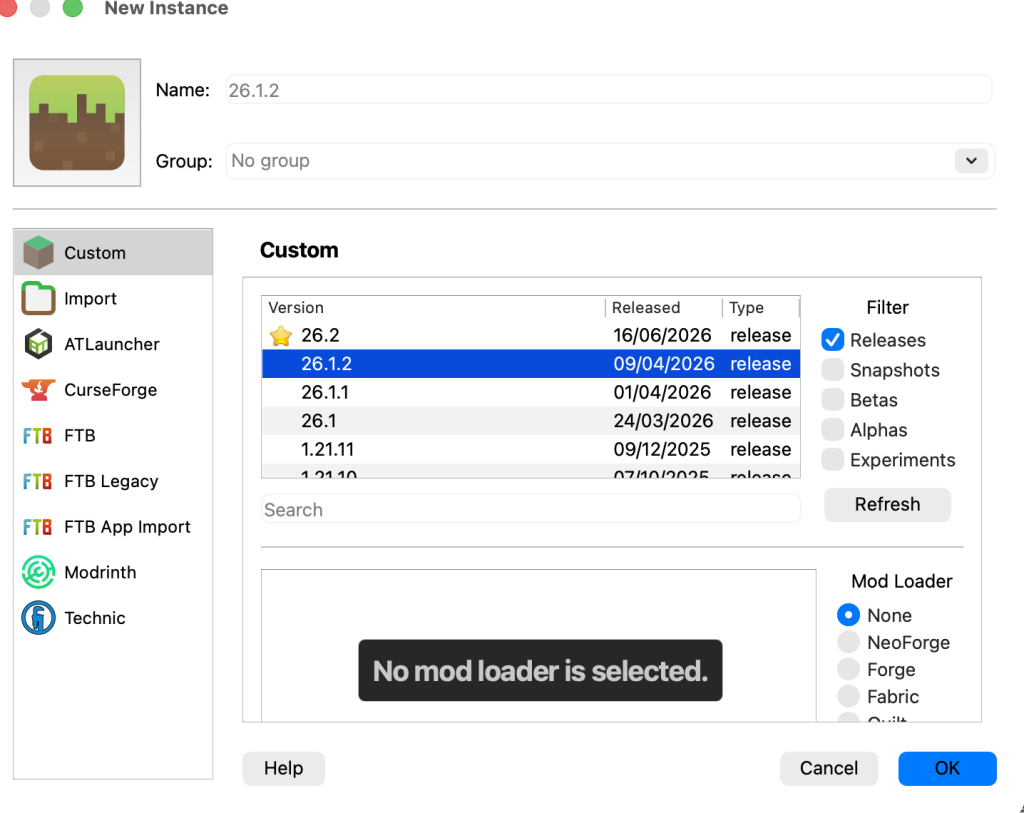
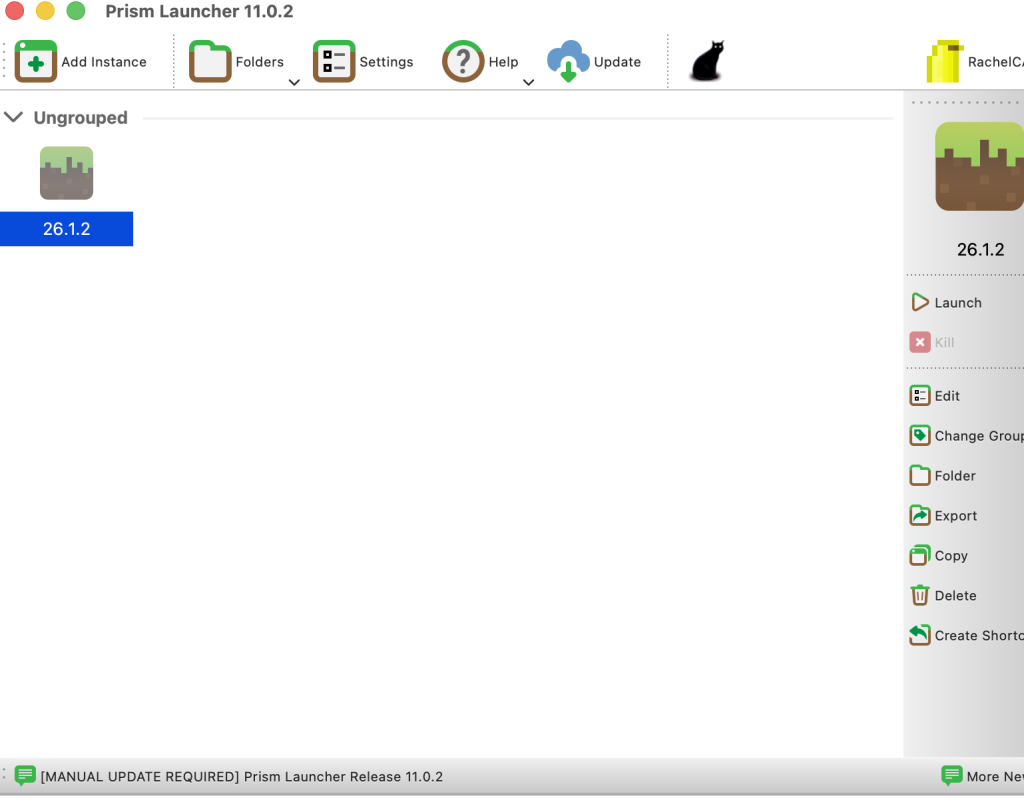
Your Launcher instance tile will show in the panel. Right click the tile and click EDIT.
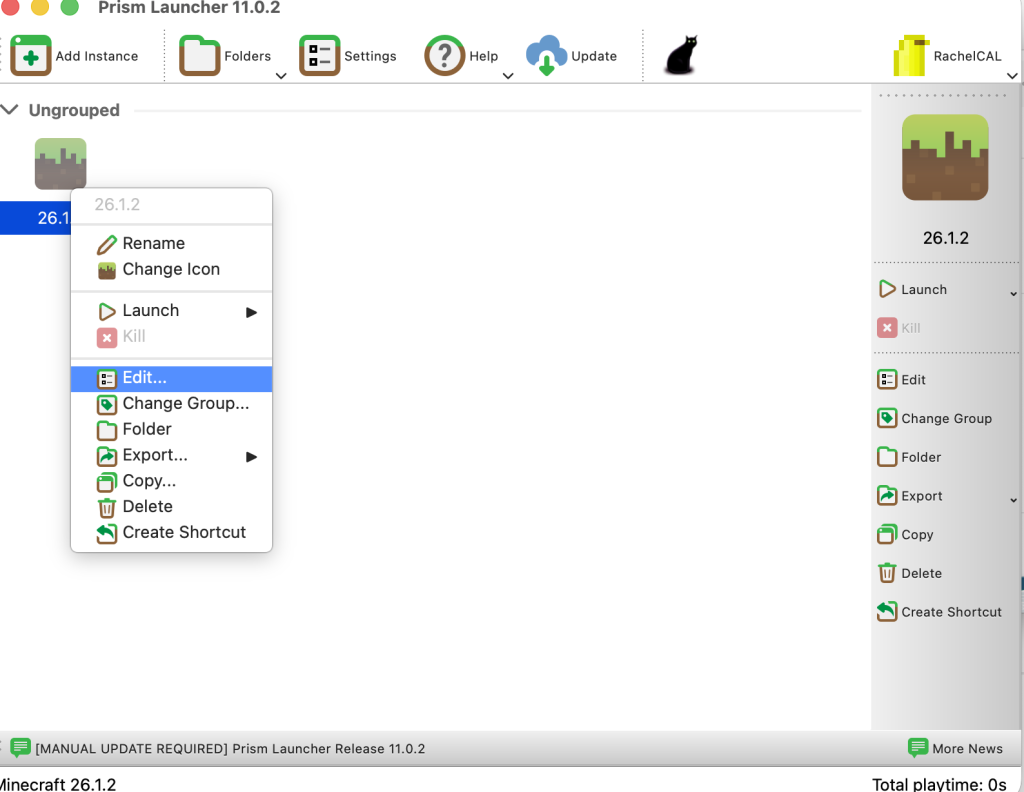
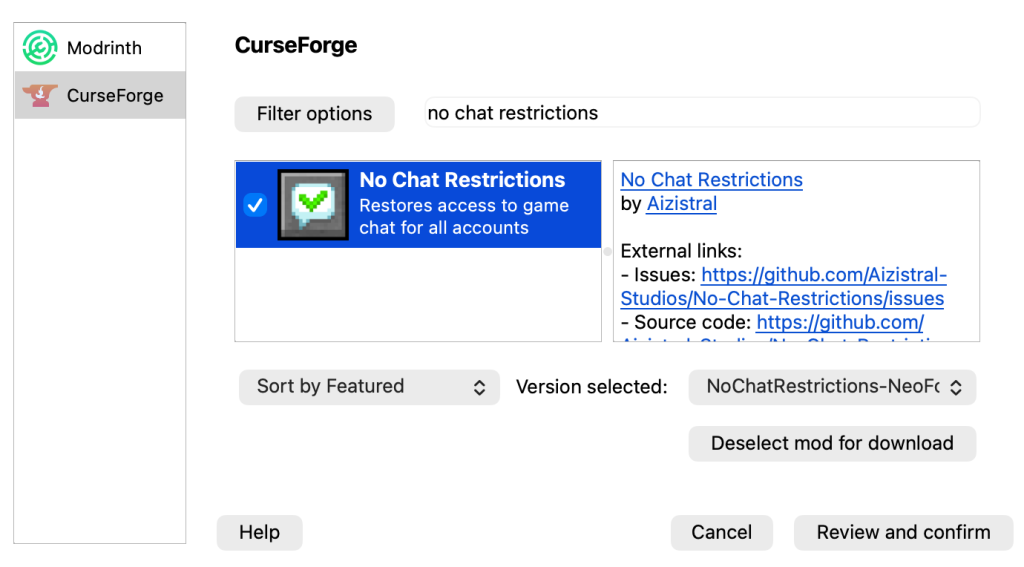
Choose a compatible mod loader from the list on the left of the Prism Launcher screen: NeoForge, Forge, Fabric, Quilt and LiteLoader. I use NeoForge as its the only one currently compatible with version 26.1.2. When you click on each one it will tell you if it is not compatible. Then click download mods (on the right of the window).
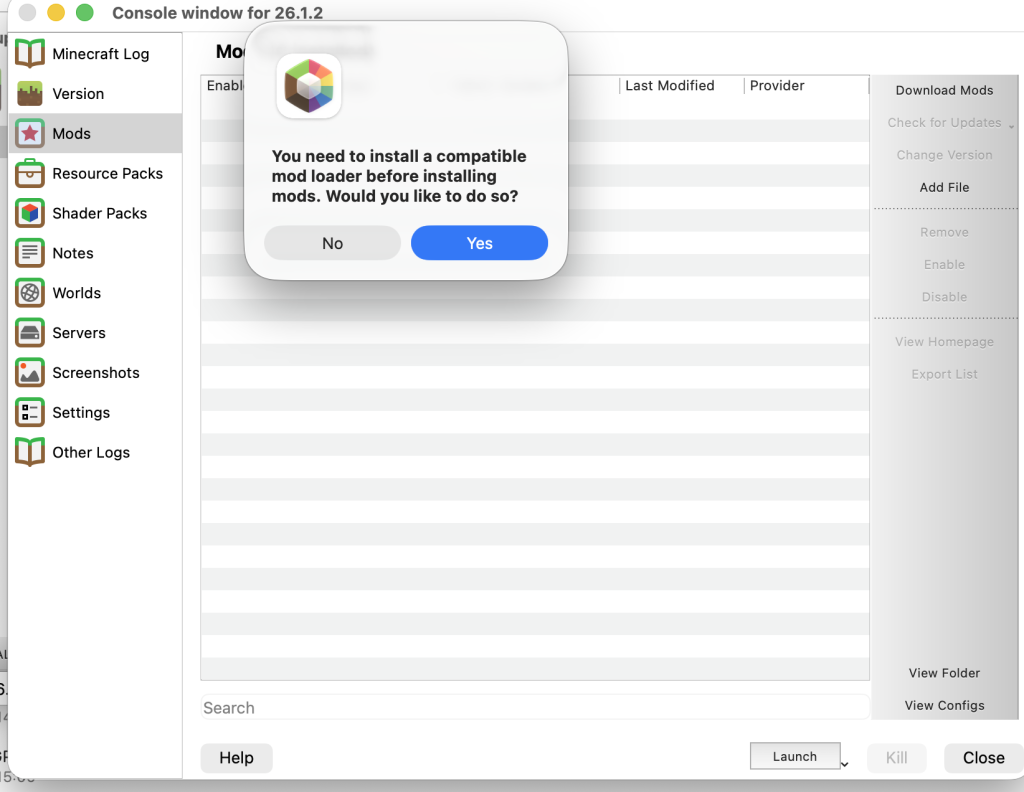
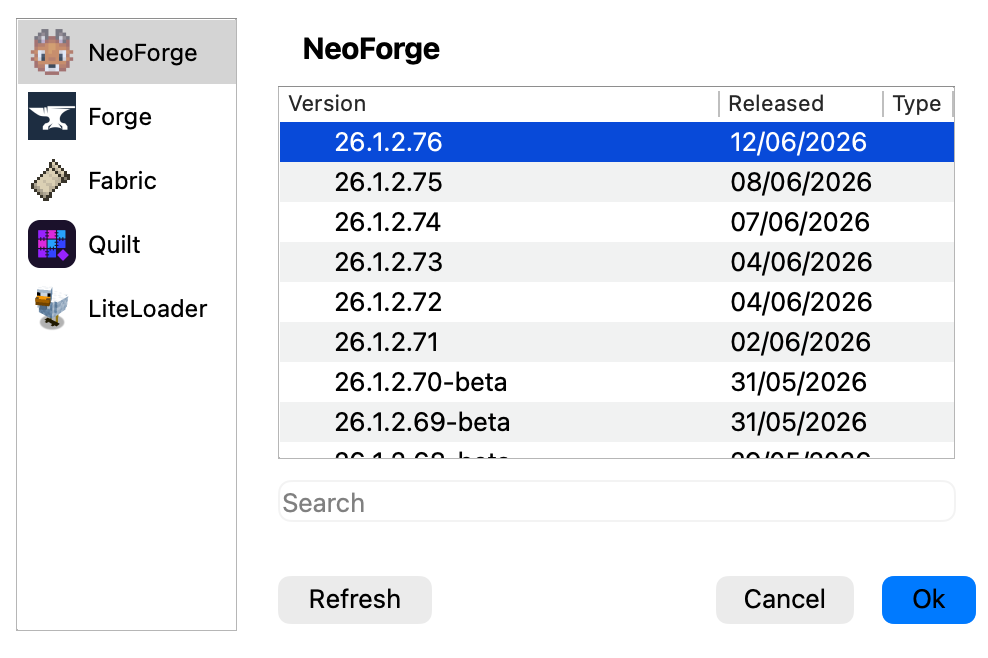
Type ‘no chat restrictions’ in the Filter Options Search Bar. Select No Chat Restrictions.
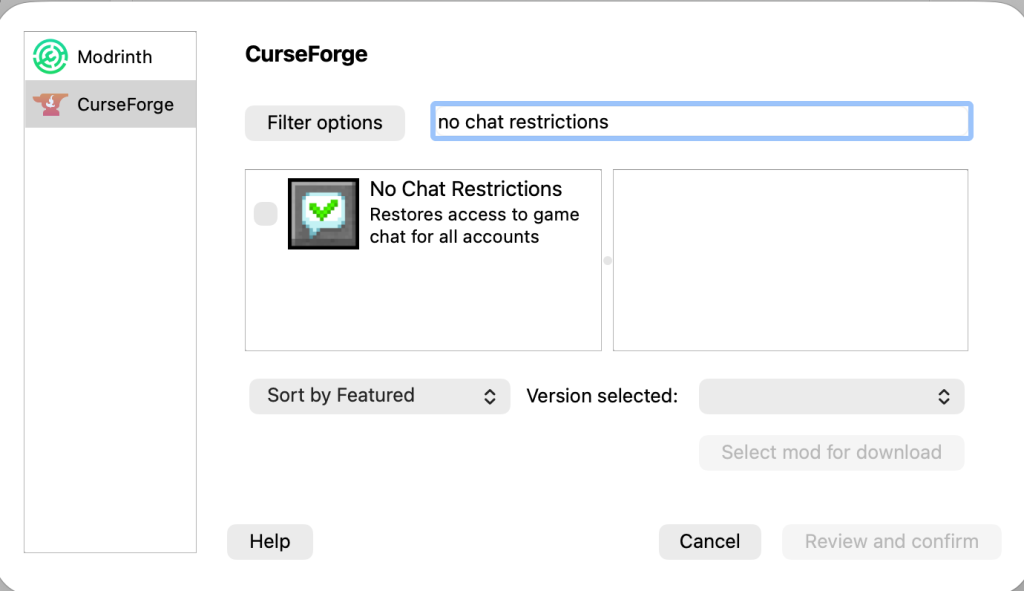
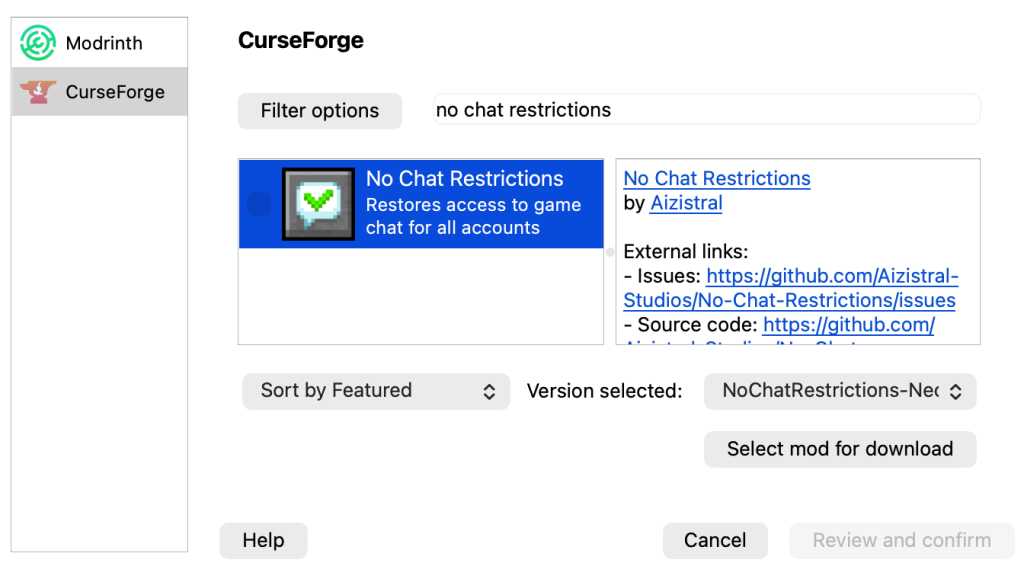
Select using the tick box.
Click review and confirm (bottom right of the window). Then click OK.
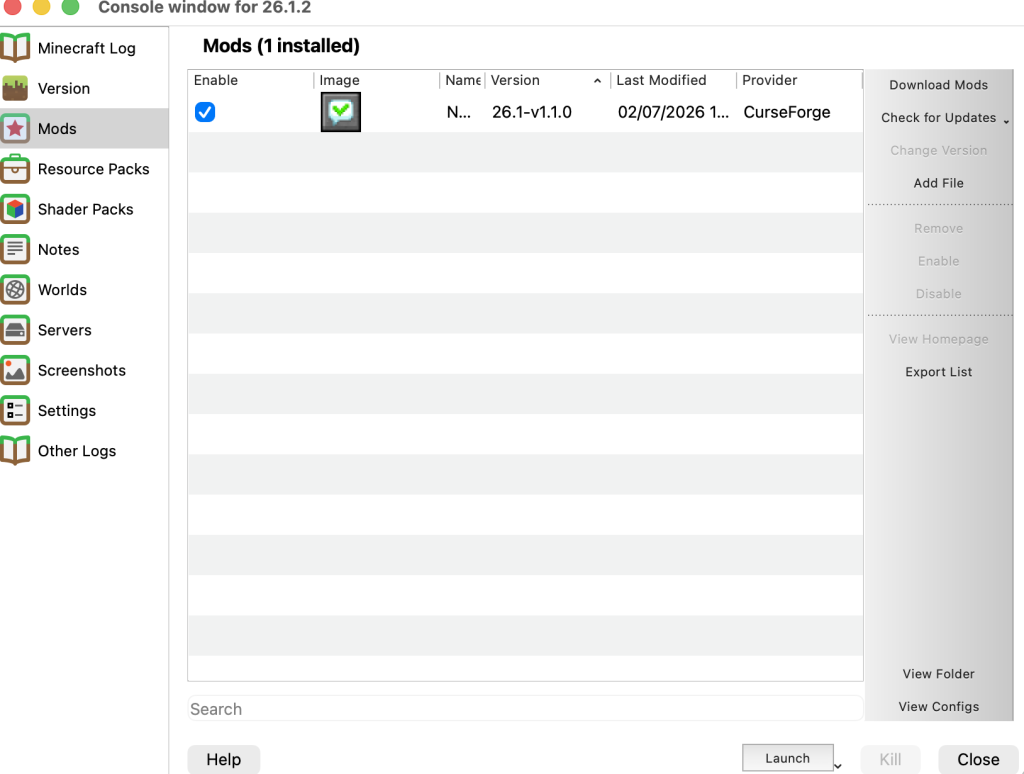
You will see this screen (right), and there should be a tick in the ‘Enabled’ box. Then Click CLOSE.
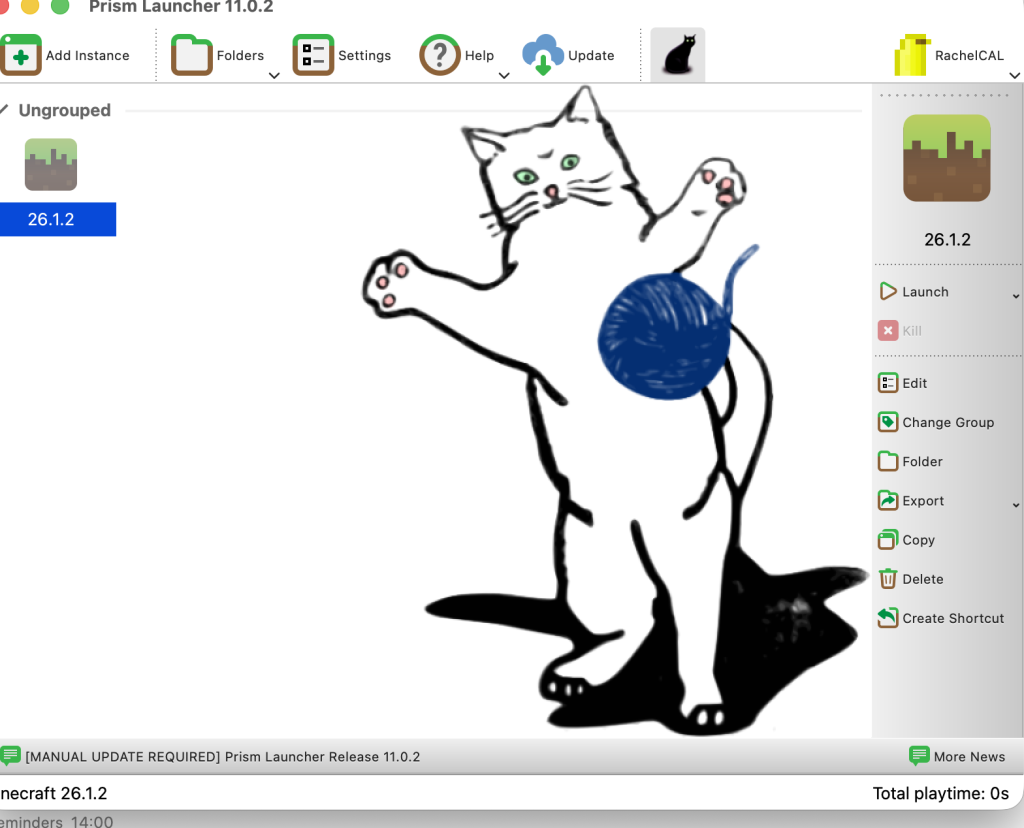
You should now see your launcher screen (right), with the launcher tile showing the version you selected.
Double click the tile to open Minecraft! ( You can add the cat by clicking on the cat icon!)